
Check Stub Report (Sponsor-Level)

This report has the claim payment amount and a summary of the meals. This report is intended to be printed directly onto pre-printed check paper (i.e. you place pre-printed check paper in your printer tray, then print the report from your computer).

- Login as a Sponsor Admin user. This will take you to the main sponsor dashboard.
- Click on the green tab for Reports. This will take you to the page to select the report category.

- From the dropdown menu of report categories, select Financial Reports.
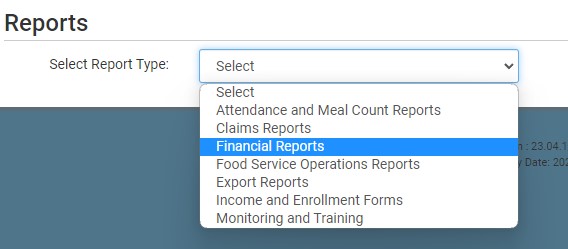
- Click on the hyperlink for the report called Check Stub Report. This will take you to the screen to make the report selections.
- On the report selections screen:
- Select the claim month(s)
- Multiple claim months can be selected
- Sponsors that accept claims on a rolling basis typically select the prior three months to ensure all claims and adjustments are captured in the report
- Select the payment date
- Payment date can be today or a date in the future
- Payment date cannot be a date in the past
- Select the available site(s)
- The only sites available are those that have a claim or claim adjustment for the selected claim month(s) AND
- The claim or claim adjustment has not been marked as paid
- Select the state submission(s)
- If this field is left blank, then all state submissions will be included in the report
- Select the check position (top or middle of page)
- Select if you want to mark the claims included in this file as paid
- Enter the starting check number of you want to mark the claims as paid automatically after generating the report
- This action cannot be undone, so double-check!
- Click the green Generate File button.
- The report will be generated and a hyperlink to Download Report will appear. Click on the hyperlink to download the report.


- The Payment Method in Site Details should be set to "Check" if you are paying the sites by check
- As part of this report, you can Marking a Claim as Paid. You will need to provide a starting check number so that those fields are included on the claims payment screen.
- State Submissions will determine which centers, sites or providers are included in the report.