Sending a Request to Parent/Guardian [Feature]
This only applies to those using Ready Records.

This feature allows users to send an email and text to the parent/guardian, or receive a link, requesting that they complete the Food Program paperwork.

To use this feature:
- Click on Participants & Rosters on the main dashboard.
- Click on the name of the Parent/Guardian that you would like to send the request to.
- Select from:
- Generate Request Link: if you would like to receive a link, for example, in order to send onto to a parent using your own email account.
- Send Request for Form: if you would like the software to send the link via email and/or text automatically.

Send Request for Form
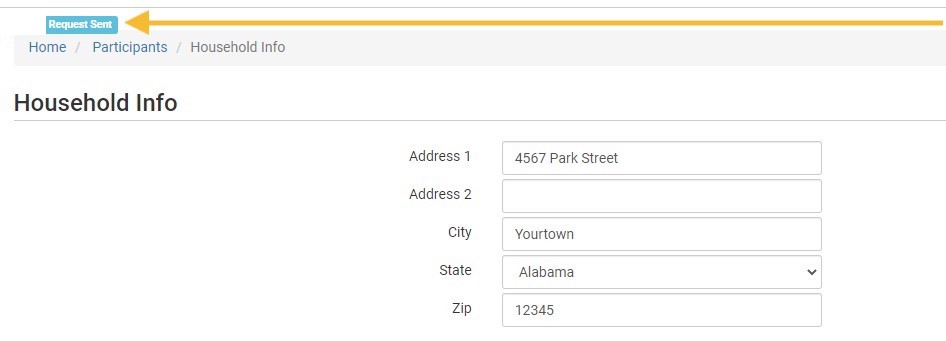
- Once you click “Send Request for Form” three things will happen:
- If there are multiple parents that are marked as "primary" then the system will prompt the user to decide which parent should receive the email.
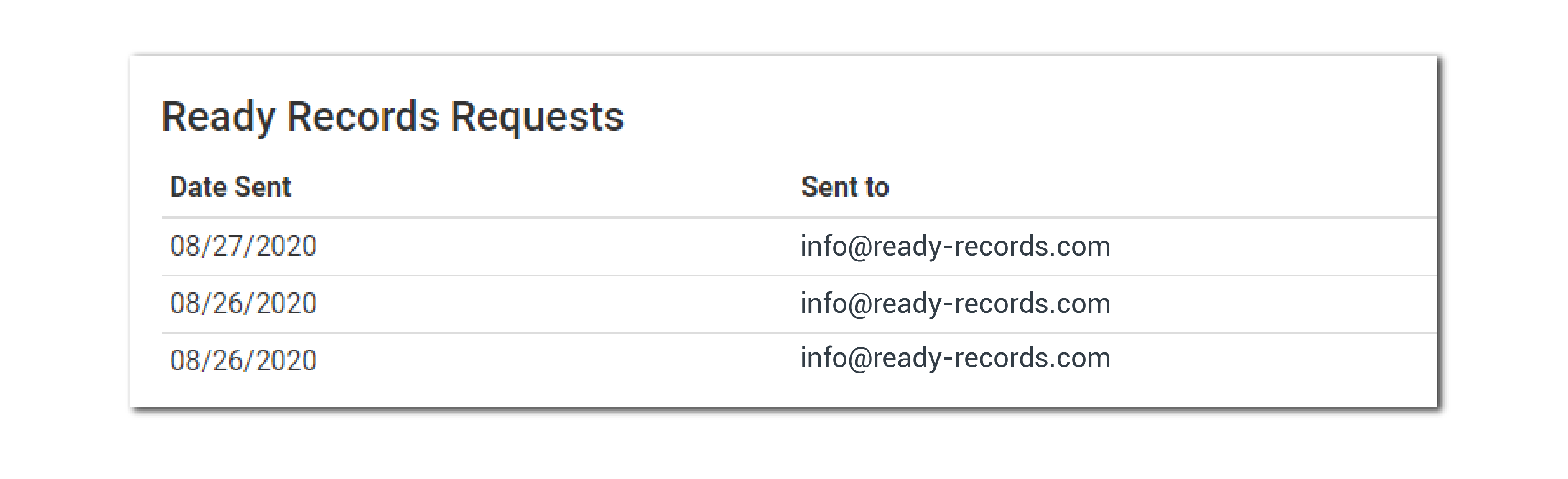
- You will see the request listed under Ready Records Requests with the date the request was sent along with the email address to which the request was sent.
- An email and text will be instantly sent to the parent/guardian email address and phone number. Instruct them to look for an email from “noreply@myfoodprogram.com” and a text from "651-350-1040". Within those messages there will be a link for them to click. The module will walk the parent/guardian through the process step-by-step.
This is what the email will look like:

This is what the text will look like:

Generate Request Link
- Once you click Generate Request Link:
- You will see the Link to Form listed under Ready Records Requests at the bottom of the screen.
- Copy this link and send it onto the parent/guardian.
