Sponsor Staff Active/Inactive Report

Provides a list of users associated with the site for the selected date range, including staff name, status, role, start date, and end date.
  • Login as a Sponsor Admin user
  • Click on the green "Reports" tab

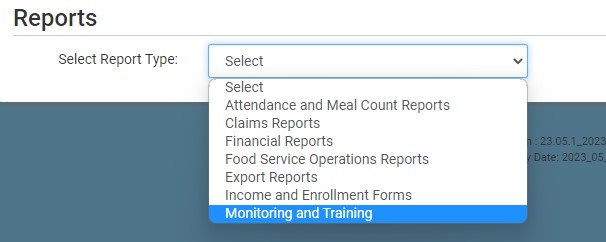
  • Select the Monitoring and Training category from the dropdown
  • Scroll down to the Users & Training category.
  • Click on the hyperlink for the report labeled Sponsor Staff Active/Inactive Report.
  • Select specific sites or select all sites.
  • Select the date range.
  • Click the green Run Report button to create a hyperlink.
  • Click the Download Report hyperlink to download the report in PDF format.
  • Still need help? Message Us