
Training Requirements Report

This report contains information about each active site and user and whether they have satisfied a particular training requirement.
- In the report header will be the sponsor name, sponsor ID and the date the report was generated
- Columns A-E will identify the site and user
- Column F-H will provide the user start date, end date (if they are inactive) and their current status
- Columns I-K will tell you the role(s) for the user
- Column L and onward will be the training requirement(s) selected when running the report
- Each row will be filled with one of the following messages:
- Training Date that requirement was met
- Missing means that the user should have had training based on their site type, role(s), start date and end date, but they haven't had training. These are the user to pay attention to!
- Not required for role means that this training requirement doesn't apply to this user's role(s)
- Not required for start date means that the user doesn't need training because the requirement wasn't in place when they started
- Not required for end date means that the user doesn't need training because they were set to inactive before the requirement due date

To run this report:
- Login as a sponsor
- Click on the tab for Reports
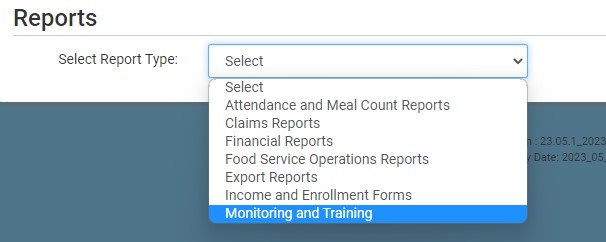
- From the dropdown, select the category Monitoring and Training
- Click on the report titled Training Requirements Report
- Select the requirements you want to include in the report.
- Click the green Run Report button to create a hyperlink.
- Click the Download Report hyperlink to download the report in spreadsheet format.
