
Participant Inactive Report (Sponsor-Level)

Lists participants who have been marked inactive.

- Login as a sponsor user and click on the tab that says reports. This will take you to a screen to select the report category.
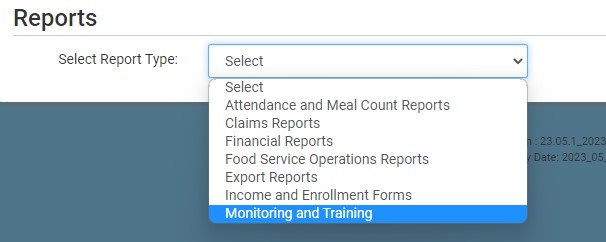
- On the screen to select the report category, select Monitoring and Training
- Scroll down to the Compliance Information category.
- Click on the Report titled Participant Inactive Report.
- Select specific sites or select all sites.
- Select date range.
- Click the green Run Report button to create a hyperlink.
- Click the Download Report hyperlink to download the report in PDF format.
