
Enter Attendance using In/Out Times and Meal Counts by Name (Combined Screen Full Version) [Feature]

This feature allows users to display in/out attendance and meal counts on the same screen. You will need to have the following settings enabled to use this feature:
- Meal Count Entry set to Daily Entry with combined screen for attendance and meal counts
- Daily Attendance Method set to In/Out Times
- Meal Count Method set to By Name

To use this feature:
- Click on Attendance & Meal Count Entry from the main dashboard.
- Select the date, roster and meal.
- If you choose Select from the roster dropdown, it will clear the roster selections and show all active participants.
- Add Notes to Sponsor (optional).
- Enter the Time In manually or use the Use Typical Times button.
- Under either Ate, Shift 1, Shift 2, etc, click the button next to the name of each child or adult day care client that participated in the meal service. Clicking the meal count button will change it from white to green.
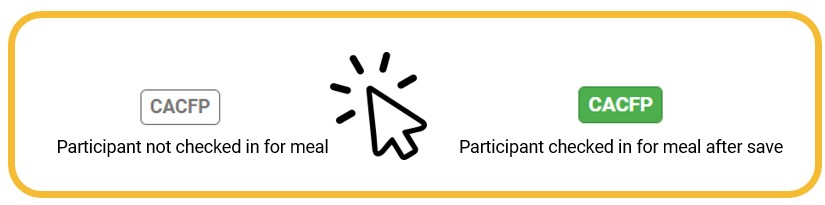
Depending on your site setup, you may see one or more of the following buttons:

- Once you have entered attendance and meal counts for all participants, click the green Save button.
Are the buttons greyed out? Missing a meal count or a participant? Check out our Guide to Daily/"Present" Attendance and Guide to Meal Counts by Name for common mistakes.


