
Guide to Meal Counts by Name
What is a meal count by name?
A meal count by name means that you are marking the specific participants for the meal service rather than giving an overall headcount. Meal counts by name are required for most of our comprehensive reports and is the most common way to enter meal counts.
How do I take a meal count by name?
- You will start by clicking the button on your main site dashboard.
- Depending on your configuration, your button might look like any of those below:

- Choose the roster from the dropdown or click Select to see all participants
- Change the date and meal if needed
- Click the meal count button next to the name of the participant
- There are eight possible meal count buttons that you will see, depending on the type of claim for which a participant is eligible.

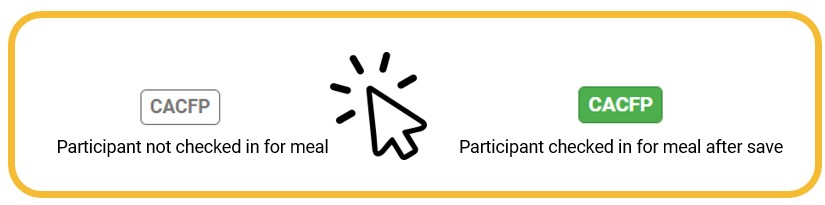
- Remember to save after clicking the meal count button!
Article Links:
Yes! There is a checkbox in site details that needs to be checked called "Display Program Adult Headcount on Meal Count by Name Page". Once that is checked, you will see a box appear at the bottom of the screen to enter the program adult headcount.

When am I allowed to take meal counts?
That depends on your sponsor settings. Sponsors can restrict users to the following time frames:
- Only approved meal times (aka "point of service")
- By midnight of each day
- By a certain day of the week
- By a certain day in the calendar month (for the month prior)
Article Links:
- Restrict all site staff meal count times
- Allow Extended Meal Count Entry Time Frame for Designated Users
- Allowed to enter attendance and meal counts in the past
- Allowed to Use Extended Meal Count Entry Time Frame
There is a participant missing from the meal count page. What is wrong?
If a participant is not on the screen, check the following:
- You are looking at the correct roster for that participant. If you aren't sure which roster a participant is on, choose "Select" from the roster dropdown to see all participants.
- Make sure the roster that the participant is on is active.
- Check the start date for the participant. We won't show a participant on the meal count screen if
- the meal date is before the participant start date or
- the participant is inactive on the meal date
Article Links:
Why are participants missing a meal count button next to their name?
I'm trying to enter my meal counts, but I don't see the meal type on the dropdown menu.
If you don't see the meal type on the dropdown, that means that
- The meal hasn't started yet. For example if your afternoon snack time is 2:00 pm, then you won't see "pm snack" as an option on the dropdown until 2:00 pm
- You are not authorized to enter meal counts right now because of the sponsor restrictions on meal count entry times.
I opened the meal count page but there aren't any participants listed. What's wrong?
That could be either:
- You have not taken attendance yet, so we don't know which participants to display on the meal count screen or
- You are not allowed to enter meal counts for this meal at this time or
- The meal has not been authorized for any meal program types.
Article Links:
- Guide to Daily/"Present" Attendance
- Guide to In/Out Attendance
- Meal Count Timeframe
- Allow Extended Meal Count Entry Time Frame for Designated Users
- Meal Program Types
My meal count buttons are greyed out. Why can't I click the meal count button?
The meal count button could be greyed out for a number of different reasons, depending on the sponsor settings. Possible reasons include:
- Attendance needs to be entered
- A menu needs to be entered
- An infant menu needs to be entered
- A food production records needs to be created
- A food production records needs to be finalized
- A food temperature needs to be recorded
- You have clicked "Submit to Sponsor" for this month already
- There is a holiday or closure recorded for the day
There will either be an on-screen message about the reason or there will be hover text (hold your mouse button over the grey button and read the text that appears).
Article Links:
- Guide to Daily/"Present" Attendance
- Guide to In/Out Attendance
- Require Menus Before Meal Counts
- Require Facility Infant Menus Before Meal Counts
- Require Food Production Records Before Meal Counts
- Require Finalized Food Production Records Before Meal Counts
- Require Food Temperatures Before Meal Counts
- Submit to Sponsor
- Add a Closure, Holiday or Field Trip
The meal count button is blue. What does this mean?
This means that a participant is already checked in on another roster. We allow participants to be assigned to multiple rosters, so this is our method to make sure a participant is only counted once.

Article Links:
Why do some of the participants have more than one meal count button?
This means that the participant and the meal are authorized for more than one program type. The most common example of this is for the at-risk afterschool meals program in a traditional child care center. You should click the box for the program type that matches the meal service. However, mistakes made on the meal program type can be corrected automatically as part of the claims process.

What does it look like if I have meal shifts?
If you serve meals in shifts, then there will be multiple meal count buttons (one for each shift). Click the button for the shift(s) at which the participant was present.

Why do I have a textbox for "Meal Outside of Schedule"?
This feature is for sites that need to mark that a participant is eating a meal that isn't on their enrollment form, which lists the typical meals received while in care.
If you see this option, you check the box and provide a reason, the error "Meal Served to Participant Outside of Participant Normal Schedule" will not be triggered.

- Meal Counts by Name using Mobile Version
- Sponsor Allowed Program Types
- Site Program Types
- Meal Program Types
- Participant Program Types
- Submit to Sponsor
- Add a Closure, Holiday or Field Trip
- Roster Assignment
- Meal Outside of Schedule
- Meal Served to Participant Outside of Participant Normal Schedule
- Making a Roster Active or Inactive
- Participant Status

- Meal Count Method
- Meal Count Entry
- Allow Extended Meal Count Entry Time Frame for Designated Users
- Require Menus Before Meal Counts
- Require Facility Infant Menus Before Meal Counts
- Require Food Production Records Before Meal Counts
- Require Finalized Food Production Records Before Meal Counts
- Require Food Temperatures Before Meal Counts
- Disallow Meals not Listed on Participant Enrollment Form
- Allow Sites to Override Disallow for Meals not Listed on Enrollment Form
- Automatically Allocate Attendance and Meal Counts for Participant Program Type